
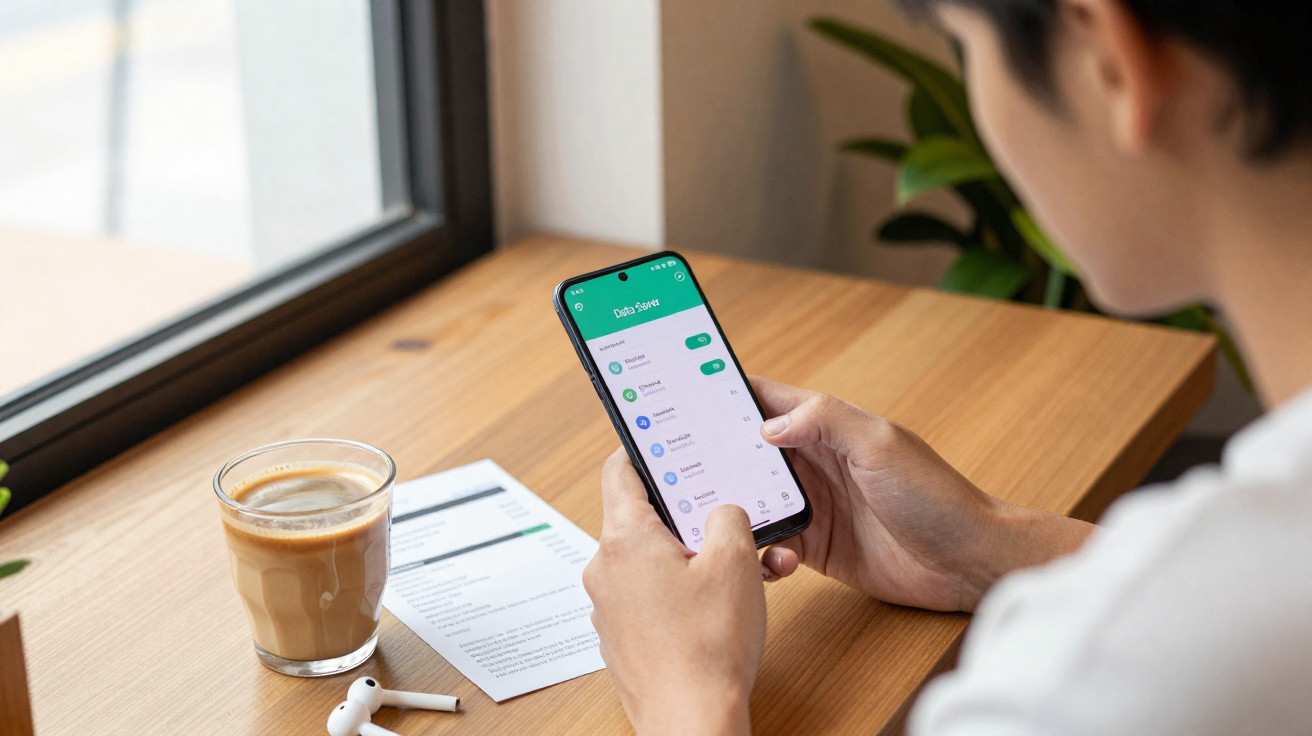
The symbol represents a choice with consequences.
Anyone who spots a plus sign inside a circle on their Android smartphone often wonders whether something has gone wrong or a new feature has been enabled. The reassuring news is that it is neither a virus nor a hidden charge. However, users should understand precisely what the icon means, as it affects how the phone handles mobile data.
What the plus sign in a circle means on your phone
On many Android devices, the plus-in-a-circle icon indicates that Data Saver mode is switched on. This feature is designed to make the smartphone use as little data as possible when connected to the mobile network.
Data Saver reduces mobile data use, but it can limit notifications, image loading and hotspot features.
In practice, this restricts apps that continually retrieve data in the background. Images in messaging and social media apps may, for example, only load fully after you tap them or manually refresh the page.
The icon can be confusing because its appearance varies by manufacturer, and some handsets do not display it at all. Many devices use a plus sign in a circle, while other brands show different indicators.
Different symbols used by different manufacturers
The same feature can be represented by different icons depending on the smartphone brand:
- Many Android devices: a plus sign in a circle in the status bar
- Samsung Galaxy: two arrows in a triangle to indicate data saving
- iPhone: Data Saver mode is available, but there is no status-bar icon
This is why people often encounter the symbol for the first time and cannot remember which setting they enabled previously. Support forums are full of exactly these questions.
Data Saver mode: a benefit for your data allowance, but a drawback for convenience?
Data Saver mode is particularly useful for people on smaller data plans. If you only have a few gigabytes each month, the feature can significantly delay the point at which your included data allowance runs out.
The mode mainly curbs background activity, including automatic app updates over mobile data and continuous synchronisation. That is also where its disadvantage lies.
Restrictions caused by Data Saver mode
Once Data Saver is enabled, your phone may behave noticeably differently during everyday use. Common effects include:
- Images in chats only loading partly, or loading after a tap
- Social media feeds refreshing more slowly or only when requested
- Push notifications arriving late or not appearing at all
- Apps that require ongoing location data or updates behaving unreliably
- Mobile hotspot usually not working on Android while Data Saver is active
For instance, if you want to briefly get your laptop online through a hotspot while out and about, you may wonder why it cannot connect. Data Saver simply blocks the feature.
If important notifications are missing or the hotspot will not start, check the plus-in-a-circle icon.
How to turn Data Saver mode on or off
If you see the plus sign in a circle, the choice is essentially straightforward: do you want to save data or have full functionality? There is only limited scope for having both at once.
Changing Data Saver mode on Android devices
The setting is located in slightly different menus depending on the manufacturer. It can commonly be found here:
- Many Android smartphones, such as Google Pixel:
Settings → Network & Internet → Data Saver - Samsung Galaxy:
Settings → Connections → Data usage → Data Saver
You can enable or disable the mode there using a simple toggle. Once the plus-in-a-circle icon disappears from the status bar, Data Saver mode is no longer active.
Data Saver on iPhone
iPhones also include a comparable option, although they do not show an icon in the status bar. On iPhone, the setting is called “Low Data Mode” and is located in the mobile data menu.
- Settings → Mobile Service → SIM → Data Mode → Low Data Mode
So, if certain apps respond more slowly on mobile data than they do over Wi-Fi, iPhone users should check this menu as well.
Excluding selected apps from Data Saver mode
Android allows you to create exceptions if you want to protect your data allowance but need dependable notifications from certain apps. Data Saver remains enabled, while selected apps can continue working without background restrictions.
Typical apps to exclude include:
- Messengers such as WhatsApp or Signal
- Email apps used for work or university
- Navigation apps that regularly download map data
- Two-factor authentication apps used for log-ins
The Android Data Saver settings usually include an option such as “Unrestricted data” or “Always allow apps”. This lets you grant the relevant apps access individually.
In-app data-saving options
Some services also provide their own data-saving settings. Typical examples include:
- Instagram: reduced data usage for videos and Stories
- Snapchat: a mode in which content only loads fully when requested
These in-app settings work independently of the system-wide Data Saver mode. Anyone wanting to manage their data allowance very strictly can combine both levels.
When Data Saver mode makes sense - and when it does not
Data Saver mode is especially worthwhile in certain situations:
- At the end of the month, when your data allowance is nearly used up
- Abroad, when you have not purchased an affordable roaming package
- On very small plans with only a few gigabytes
- On secondary devices that are only used occasionally
The mode is less suitable for anyone who depends on fast responses, such as users handling work chats, critical alert apps or a mobile hotspot all the time.
Anyone who needs to respond immediately to every email and messenger message should enable Data Saver with care.
When your data allowance is always running low
If you find that Data Saver mode stays enabled permanently to avoid speed restrictions every month, you may simply be reaching the limits of your tariff. Data-saving tricks only go so far, as daily phone use becomes noticeably less convenient.
In these cases, it may be worth reviewing current mobile tariffs. Many providers offer 5G or LTE packages with substantially larger data allowances, sometimes including trial offers and 50 GB or more. Anyone who regularly uses navigation, streams content or works while travelling will often feel much less restricted with such a package.
Small clues, major impact: interpreting symbols correctly
The plus sign in a circle is only one of the many icons Android places in the status bar. A single symbol can often determine whether a feature is running or blocked. Knowing what these signs mean saves time, frustration and, in the case of Data Saver mode, money too.
A practical approach is to check the top of the screen first whenever your phone behaves oddly - images will not load, the hotspot refuses to work or notifications are missing. The status bar often already contains the explanation, before you start looking for complicated faults or reinstalling apps.
With the plus-in-a-circle icon, the key question is simply this: is saving data more important than convenience? The answer can change from month to month depending on your tariff and how you use your phone - fortunately, the setting can be adjusted in just a few taps.






Comments
No comments yet. Be the first to comment!
Leave a Comment