
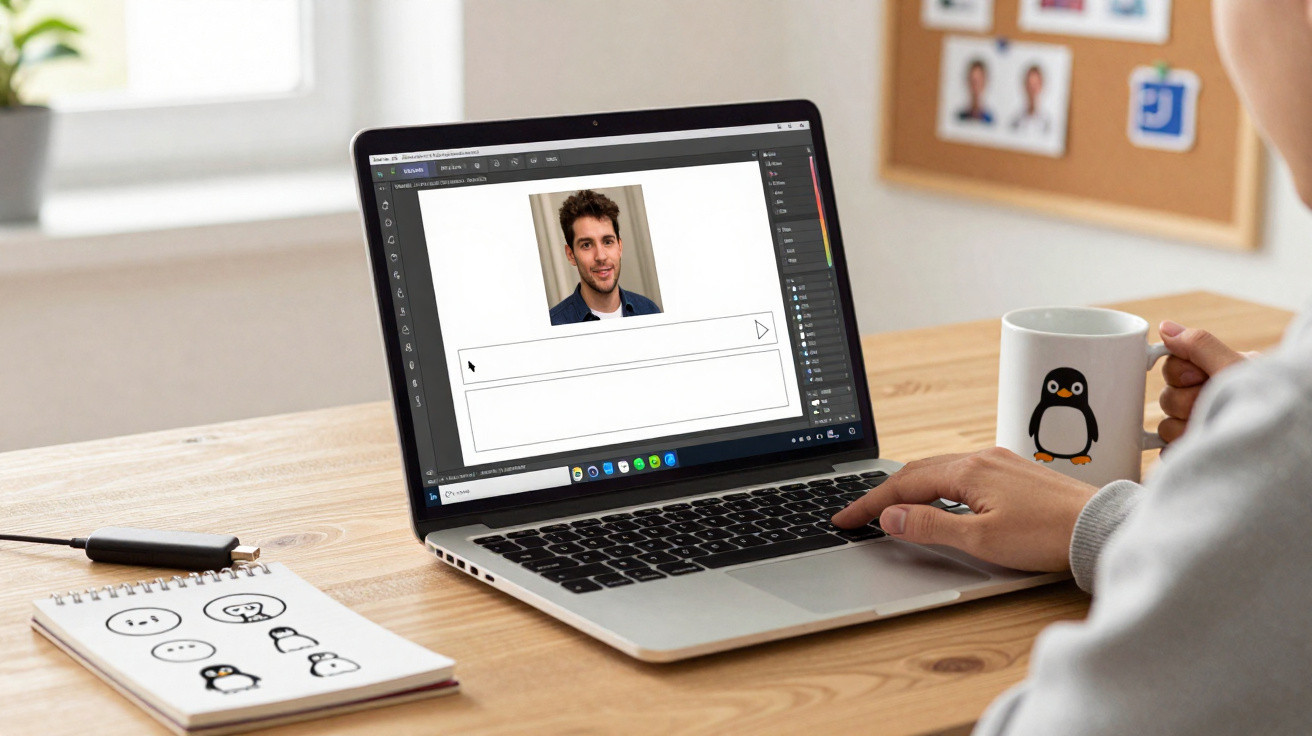
Memerist is a small, straightforward Linux app that makes creating memes a rapid, almost fun process rather than a design exercise. Free and lightweight, it is aimed at anyone who wants to put text over an image and share it without unnecessary effort.
Memes without the hassle of AI or pro editors
During the past year, AI image generators have dominated the headlines with promises of photorealistic imagery and bizarre combinations. In practice, however, most people continue to share something much simpler: a recognisable picture with a few well-chosen words placed over it.
Windows and macOS offer dozens of applications and web-based tools for doing this. Linux users, by contrast, have often had to rely on fully featured editors such as GIMP. These are capable tools, but can feel daunting when all you need is to write “when the update breaks your system” over a screenshot.
Memerist is a free Linux application focused on one task: creating memes from your images quickly, without a learning curve.
The application avoids AI image creation, paid template libraries, watermarks and dependence on social media platforms. In their place, it offers a basic canvas: choose an image, add wording, alter a few settings, then export and share.
What Memerist actually does
Memerist deliberately has a narrow focus, and that limitation is its greatest advantage. Instead of attempting to rival professional graphics software, it keeps only the functions meme makers regularly need.
Core features at a glance
- A built-in small library of well-known meme-style pictures
- The ability to import your own pictures and save them to the library
- Fast text layers with simple formatting and rotation controls
- PNG and JPEG export options
- High-contrast and “dirty” style filters for a rough, web-compressed appearance
- Zoom controls for accurate placement
- Support for several image and text layers
- A live preview of edits
There is no advanced colour grading, no vector functionality and no detailed layer effects. Instead, it provides enough adjustment to keep lettering legible, communicate the joke and maintain a consistent style between memes.
The limited toolset keeps Memerist fast: open, edit, export, post - often in under a minute.
How to install Memerist on your Linux system
Memerist is available from Flathub as a Flatpak package, making installation fairly simple on most current Linux distributions.
Prerequisites: Flatpak support
Memerist uses Flatpak, a universal package format for Linux applications. Most widely used distributions either include Flatpak support by default or let you install it quickly.
| Distribution | Flatpak support | Typical approach |
|---|---|---|
| Ubuntu / Pop!_OS / Linux Mint | Available | Install Flatpak if required, then add Flathub |
| Fedora Workstation | Preconfigured | Use the Software app or the terminal directly |
| Debian / MX Linux | Available via repository | Install the Flatpak package, then add Flathub |
| openSUSE | Available | Enable Flatpak, then use the GUI or terminal |
Installing via the software store
Where your system software centre already displays Flatpak apps, this is normally the simplest method:
- Launch your distribution’s app store or software centre.
- Look up “Memerist”.
- Select the listed app and press the install button.
- If its launcher icon is not shown straight away after installation, log out and sign in again.
Installing from the command line
If you are happy using a terminal, or your graphical software store lacks Flatpak support, a single command installs the app after Flatpak and Flathub have been set up:
flatpak install flathub io.github.vani_tty1.memerist
When the installation has completed, Memerist should be listed in the desktop menu, usually under graphics or accessories. Should it not appear, logging out and back in will generally resolve it.
Creating your first meme with Memerist
Memerist is designed to be intuitive enough to use almost immediately. Even so, this short guide is useful if you want to produce something quickly.
Step 1: Pick your base image
On opening the application, you are presented with a clean layout containing a central canvas, side panel and small image library. You may:
- Choose one of the included classic-style images, such as reaction faces or expressive photographs.
- Import an image from your files and save it in the internal library for future use.
Using your own pictures, whether it is a friend’s puzzled expression, an error-message screenshot or a terminal filled with red text, can make a meme considerably more personal.
Step 2: Add and style text
Captions are managed through dedicated layers. Select the bold “B” button in the sidebar to add a text layer, then enter your caption.
You can reposition the text by dragging it, alter its rotation and experiment with a small selection of font effects. The goal is to achieve the familiar meme style without having to deal with dozens of controls.
Memerist favours speed over perfection: you won’t spend an hour tweaking kerning or line spacing when the joke should be online in seconds.
There is one restriction: perspective warping is unavailable. Consequently, you cannot precisely align text with angled objects or walls in a picture. This is unlikely to matter for most memes, since uneven lines are arguably part of their aesthetic.
Step 3: Apply filters and check the preview
Memerist offers several uncomplicated filters. These include a high-contrast setting that brings out text and important details, along with a deliberately rough “ensh*tify” style effect that recreates the look of heavily compressed, poor-quality internet pictures.
The application updates the preview live as you alter captions and filters. Zoom in to correct positioning, or zoom out to assess the overall result.
Step 4: Export and share
When you are satisfied with the finished image, select Export. Memerist uses PNG by default, preserving quality and transparency, although this may result in comparatively large files.
To save as a JPEG instead, change the extension in the export dialogue from .png to .jpg before saving. This creates a smaller file that may work better with certain chat applications and websites.
Choosing PNG or JPEG often comes down to where you’re posting: JPEG for lighter files, PNG when quality matters more.
Why a minimalist meme tool makes sense in 2026
At a point when AI systems can produce surreal pictures on demand, Memerist follows a distinctly different approach: it expects that you already have an image worth using. It might be a screenshot, personal photograph or frame from a video. The significance lies in the caption rather than an algorithm.
This approach also avoids many of the copyright and consent concerns surrounding AI-generated imagery. Beginning with your own material or openly shared pictures makes the ethical position clearer and leaves you fully in charge of how that material is used.
In practical terms, Memerist also steers clear of demanding computing requirements. As there is no model to run, it works well on low-powered laptops and older computers.
Practical scenarios where Memerist shines
Although Memerist may seem like a toy, it can also be unexpectedly valuable in workplace and community settings.
- Internal team chats: Transform repeat bugs, lengthy build processes or deployment mishaps into amusing memes that ease the mood in Slack or Matrix channels.
- Open-source communities: Post meme-style release announcements or “known issues” jokes that make technical information easier to approach.
- Education and workshops: Teachers and trainers can make otherwise dry subjects more engaging with quick memes, helping learners retain important points.
- Social campaigns: Activist and non-profit organisations often depend on shareable visual messages; Memerist offers them a straightforward way to make these without commercial software.
Since the app functions offline, it can be particularly useful on locked-down or privacy-oriented systems where online meme generators are less desirable.
Tips, risks and good practices when making memes
Memes can spread rapidly and reach audiences far outside the one originally intended. An application such as Memerist makes publishing almost too convenient, so it is sensible to pause briefly before selecting “send”.
Before exporting, ask yourself:
- Does the picture include people who may not want to be ridiculed or shared widely?
- Might the caption be interpreted very differently beyond your friendship group or team?
- Are copyrighted images being used in a manner that could create problems if the meme spreads?
Understanding a few technical terms is useful as well. A layer is effectively an individual element placed over the base image, which can be moved without changing the other elements. Filters are preconfigured adjustments that change colour, contrast or texture in one click. Export simply refers to saving the completed combination of elements as one image file ready to share.
Combined with a basic awareness of consent and context, Memerist offers Linux users a quick, free way to take part in meme culture from their own desktops, without changing operating system or signing up to another online service.






Comments
No comments yet. Be the first to comment!
Leave a Comment