
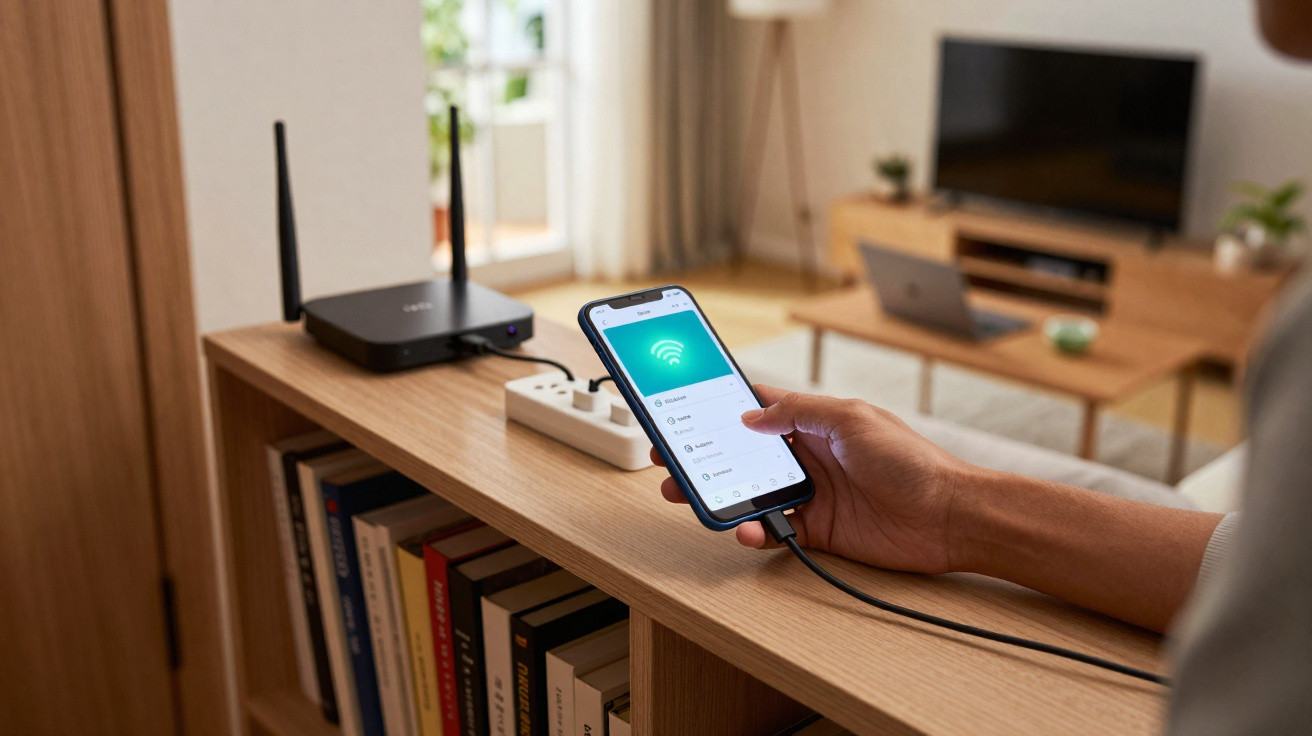
The answer may have been sitting in a drawer for years.
Many households have Wi-Fi dead spots at home and immediately consider buying an expensive repeater or a new mesh system. Yet an old Android smartphone that is otherwise gathering dust can often do the job. With a few adjustments, the handset can become a useful booster for your home Wi-Fi, without any extra cost.
Why Wi-Fi fails in many homes
Broadband providers’ routers have improved considerably. Current models broadcast across several frequencies, can serve multiple devices at once and offer high theoretical speeds. Even so, day-to-day performance can be very different.
- Thick walls or reinforced concrete absorb the wireless signal.
- The router is poorly positioned, perhaps in a corner or behind the television.
- Neighbours’ Wi-Fi networks overlap on the same channels.
- Wireless devices, microwave ovens or baby monitors interfere with the signal.
- The home has an awkward layout or more than one floor.
The result is slow-loading websites, stuttering video calls and streaming services reducing picture quality. This is normally where conventional Wi-Fi repeaters come in. Plugged into a mains socket, they extend the existing network. However, these small units cost money and do not always deliver everything promised on the box.
An older Android smartphone with a hotspot feature can handle many of the tasks performed by a repeater, without any additional hardware.
How an old Android smartphone works as a Wi-Fi repeater
Android smartphones usually include two key wireless features: Wi-Fi for receiving networks and a mobile hotspot for sharing an internet connection with other devices. A hotspot is normally used with mobile data. In this case, it acts as a “small relay station” within the existing home network.
The idea is straightforward: the old handset connects to the router over Wi-Fi while creating a separate Wi-Fi network with its own name and password. Devices at the far end of the home no longer connect directly to the router, but instead join the smartphone hotspot. Ideally, the phone should be placed where the router’s signal remains reliable while the room with poor coverage is already within range.
Requirements: what your old device needs
Before getting started, check the following points:
- Android version: Most hotspot options work reliably from around Android 8 onwards.
- The menu must include Mobile Hotspot or Tethering.
- The battery should still be in reasonably good condition, or the handset should remain permanently connected to power.
- The Wi-Fi module must be working properly and must not be faulty.
As a rule, a newer phone will also have a better Wi-Fi antenna. A mid-range smartphone that is five years old is usually already very suitable for this purpose.
Step by step: set up Android as a mini Wi-Fi repeater
Menu names may vary slightly between manufacturers, but the process is broadly the same:
- Start Android and consider a factory reset: You can optionally reset the handset so that old apps and data do not interfere.
- Connect to your home Wi-Fi: Open Wi-Fi, select your usual network and enter its password.
- Ensure a power supply: Ideally, plug the smartphone into a mains charger.
- Enable the mobile hotspot: In Settings, go to Network & Internet or Connections, then choose Mobile Hotspot / Tethering.
- Set a hotspot name and password: Choose a clear new network name, such as “Flat-Plus”, and create a secure password.
- Check the channel and band: Use 5 GHz where possible. It is often more stable and less congested, although its range is slightly shorter than 2.4 GHz.
- Find the right position: Put the handset in a location where the router’s Wi-Fi is still sufficiently strong, but close to the edge of the target room’s coverage.
You can then select the new Wi-Fi network in the room with poor reception. Devices connect to the old smartphone’s hotspot, giving them a more stable connection.
Where this Wi-Fi repeater trick works well - and where it does not
This approach is particularly useful for:
- Home offices in a room at the back of the home
- Bedrooms where streaming and browsing should work better in the evening
- Children’s bedrooms, where tablets often receive a weak signal
- Basement rooms that otherwise receive almost no signal from the router
The method is less advisable when you require very high data rates, such as for low-latency gaming or large downloads running for many hours. A proper mesh system is generally the better choice in these situations.
How capable is a smartphone as a repeater in practice?
A dedicated Wi-Fi repeater often includes features that a phone lacks, including intelligent channel selection, specialist antennas and optimised software. Nevertheless, an Android device provides more than enough performance for many everyday uses.
Typical tests show that a smartphone hotspot is generally sufficient for browsing, social media, HD video conferencing and streaming up to Full HD. Limitations are more likely to appear with several simultaneous high-quality streams or when large volumes of data are being transferred continuously.
By positioning an old smartphone carefully, you can eliminate Wi-Fi dead spots without having to touch the router.
Keep an eye on power use and security
One issue many people overlook is energy consumption. The smartphone operates continuously as a wireless hub, which drains its battery. Anyone planning to use it as a booster around the clock should:
- use a lower-powered charger to reduce heat,
- choose a heat-resistant surface rather than placing it beneath cushions or blankets,
- use a simple, ventilated case or remove the case altogether.
Security is equally important: always use WPA2, or preferably WPA3, encryption for the hotspot. A straightforward but non-obvious password stops neighbours or people in the communal hallway from using your network.
Which software settings can help further?
To keep the old phone running reliably as a Wi-Fi booster, it is worth reviewing several detailed settings:
- Extend the screen timeout: Some devices aggressively disable background functions when the display is off. Check whether the hotspot remains active.
- Adjust power-saving mode: Battery-saving settings can limit the hotspot, so it is better to disable them for this device.
- Turn off automatic updates: Unnecessary app updates can briefly interrupt the connection.
- Leave only system apps enabled: The less unnecessary software the device runs, the more stable it should be in continuous operation.
Some manufacturers also provide dedicated hotspot profiles in their interfaces. If you see an option such as “Always on” or “Maximum performance”, test it for this scenario while keeping an eye on heat build-up.
When a proper repeater or mesh system is the better option
Using an old smartphone is clever, but it will not provide ideal coverage in every home. One hotspot is often insufficient in large detached houses or very long homes. In these cases, several coordinated access points make more sense.
Mesh systems distribute the signal through multiple stations and automatically manage which access point each device uses. They are often the most dependable option for households with many smart-home devices, 4K streaming in several rooms or gaming setups. Even then, the retired smartphone can still be a useful addition, for example in a garden shed or on a balcony.
Practical tips for a stable home network
If you are already improving your Wi-Fi, a few simple measures can help you get more from the network:
- Position the router as openly as possible, rather than behind metal or inside a cupboard.
- If possible, install the router centrally within the home.
- Use the router menu to select a less heavily used wireless channel.
- Replace very old, slow Wi-Fi devices gradually, as they can often slow down the network.
- Use an Ethernet cable for particularly critical devices, such as a PC or games console, wherever possible.
Terms such as “Dual-Band” and “Tri-Band” confuse many users. Put simply, Dual-Band routers broadcast on 2.4 and 5 GHz. Tri-Band models, for example, provide an additional 5 GHz band so that more data can be transmitted at the same time. An old smartphone cannot fully replace this capability, but it can bridge individual Wi-Fi dead spots surprisingly effectively.
So, if you still have a dusty Android device in a drawer, a few simple steps can turn it into a useful tool for your home network. The trick costs nothing, reduces electronic waste and also demonstrates how flexibly modern smartphones can be used.


Comments
No comments yet. Be the first to comment!
Leave a Comment