
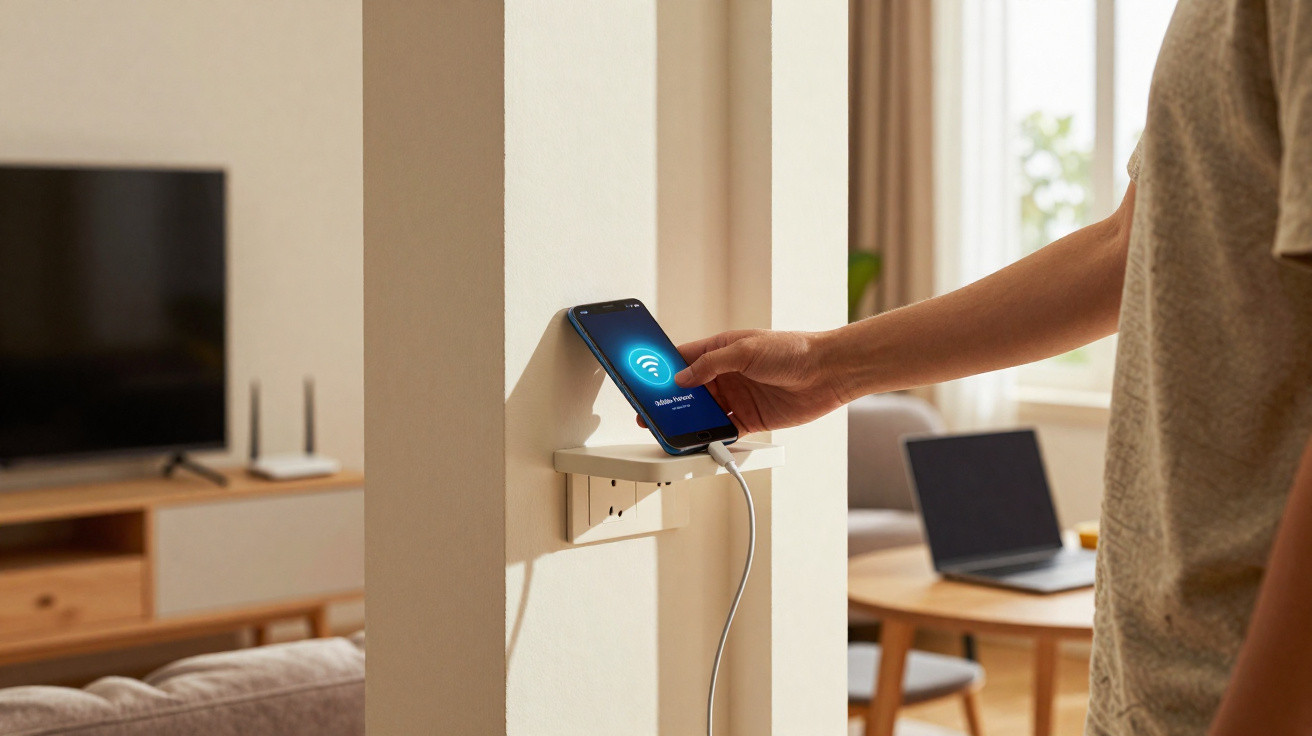
An ageing Android handset that nobody uses any more can do more than gather dust. With a few well-chosen settings, you can turn a retired smartphone into a Wi-Fi repeater, filling frustrating signal dead zones without spending money on an expensive mesh system or plug-in extender.
Wi-Fi dead zones at home: why your connection often struggles
Internet providers advertise impressive gigabit speeds, yet in everyday use little of that performance reaches many rooms. The issue is rarely the broadband connection itself; more often, it is the home.
- Thick concrete or brick walls severely weaken wireless signals.
- Reinforced-concrete ceilings and underfloor heating can act as a barrier to radio waves.
- Microwaves, baby monitors and Bluetooth devices interfere with the 2.4 GHz frequency.
- Routers are often poorly positioned: in a hallway, inside a cupboard or right beside a tangle of cables.
“Where Wi-Fi arrives with only one bar, streams cut out, videos load at a snail’s pace and online games become a test of patience.”
Many people immediately order a costly repeater or a complete mesh kit. If you already have an old Android smartphone lying around, however, you can often achieve the same result for free.
Use your old Android device as a Wi-Fi repeater: what you need
Before you begin, it is worth checking whether the old device is actually suitable.
Requirements your smartphone should meet
- An Android version that offers “Mobile hotspot” or “Tethering”
- A Wi-Fi module that still works
- A reasonably healthy battery, or the option to keep the device permanently charged
- A reliable power source near its intended location
The newer the wireless chip, the better the outcome is likely to be. Very old handsets that support only earlier Wi-Fi standards can extend coverage, but may also reduce speeds. Even so, this is usually sufficient for everyday tasks such as browsing, email and standard streaming.
How to set up an Android smartphone as a repeater
The principle is straightforward: the old phone connects to your router over Wi-Fi while also creating its own small Wi-Fi network, which devices in the dead zone can join. The feature may have a slightly different name depending on the manufacturer, but the process is broadly the same.
Step 1: Reset and tidy up the device
If the retired device still contains old data, performing a factory reset is worthwhile. It reduces potential sources of error and puts less strain on the battery.
- In Settings, select “System” or “General management”.
- Choose “Reset” and restore the device to factory settings.
- Once it restarts, enable only the essential options; a Google account is not required.
Apps and services running in the background increase power use. Keep the system as lean as possible.
Step 2: Connect to your home Wi-Fi
Connect the device to your existing network as usual:
- Under “Wi-Fi”, select your home network.
- Enter the Wi-Fi password and establish the connection.
- Check that web pages open in the browser.
Important: you can switch off Bluetooth and mobile data if you do not need them. This saves power and avoids possible interference.
Step 3: Enable the mobile hotspot
Now activate the key feature: the mobile hotspot.
- Open Settings.
- Depending on the interface, go to “Connections”, “Network & Internet” or “Tethering/Hotspot”.
- Enable “Mobile hotspot”, or the similarly named option.
- Set a network name (SSID) and password.
“Use a secure password for the hotspot and, where possible, WPA2 or WPA3 – anything else is no longer up to date.”
You can base the hotspot name on that of your main Wi-Fi network, for example “MyWiFi_Repeater”. This makes it easy to see which wireless access point your laptop or television is using.
The best position for your phone repeater
Placement determines whether this experiment works or comes to nothing. The device should not sit right next to the router, nor should it be placed at the far end of the dead zone.
| Position | Effect |
|---|---|
| Directly beside the router | Hardly any improvement in coverage; simply creates a second source of wireless signal |
| Halfway between the router and dead zone | A good balance between signal quality and extended coverage |
| Deep inside the dead zone | Input signal is too weak, resulting in a slow or unstable connection |
Ideally, place the smartphone where it still receives a decent signal from the router – for example, two or three bars on the Wi-Fi icon – while being noticeably closer to the room that previously had little or no coverage.
Practical tips:
- Put the device slightly higher up on a shelf rather than on the floor.
- Do not position it directly against large metal surfaces or behind the television.
- Route the charging cable so that nobody can trip over it or pull the phone down.
Keep an eye on energy use and security
A hotspot that runs continuously consumes power. The battery in an old device can suffer if the phone remains at 100 per cent charge all the time and becomes very hot.
A few adjustments can help:
- Reduce screen brightness to a minimum and set a very short display timeout.
- Leave only Wi-Fi and the hotspot enabled; disable all other wireless services.
- If possible, keep the battery slightly below a full charge, for example by using a timer plug.
Treat this secondary network with the same care as your main Wi-Fi when it comes to security. Use a separate, long password and avoid obvious terms. Very old devices may lack modern encryption standards; in that case, this setup is better suited to non-critical uses such as streaming to a second television.
Where the phone solution reaches its limits
This improvised repeater is not the best option in every situation. Professional mesh systems offer several advantages:
- Better management of multiple access points through a central app
- Automatic switching between access points as you move around
- Higher maximum data rates and modern antenna technology
People who regularly move large amounts of data, edit 4K video material on their home network or share Wi-Fi with many people at once will generally benefit from dedicated hardware. For a typical household with one dead zone in a bedroom or home office, a phone repeater is often entirely adequate.
Alternative use: a Wi-Fi bridge for older devices
The idea can also work in reverse: the old Android smartphone can act as a bridge for devices with no Wi-Fi at all or support only outdated standards. One example is an older smart TV that offers only a slow wireless connection.
In this case, connect the phone to the fast router via Wi-Fi, then link the television using a USB Ethernet adapter or – on some models – Bluetooth tethering. This allows older technology to benefit from a more stable network connection.
Why the experiment is almost always worthwhile
Old smartphones often sit unused in drawers for years, despite containing fully working hardware. Reusing these devices rather than immediately buying new electronics makes sense for resources, your budget and the environment.
“Anyone who uses their old Android phone as a repeater not only protects their bank balance, but also reduces a small amount of electronic waste in everyday life.”
For families with children, the project can even become a small practical lesson in technology: where should the router go? How do radio waves behave? Why does one extra bar on the Wi-Fi symbol allow Netflix to run without stuttering? Trying different locations and settings quickly gives you a feel for how sensitive a home network is to a building’s layout and materials.
Ultimately, the impression is a practical one: a homemade repeater from the drawer will not replace every professional solution, but it surprisingly often fixes the everyday annoyance that matters most – the one room where the Wi-Fi always misbehaves precisely when you need it most.




Comments
No comments yet. Be the first to comment!
Leave a Comment