
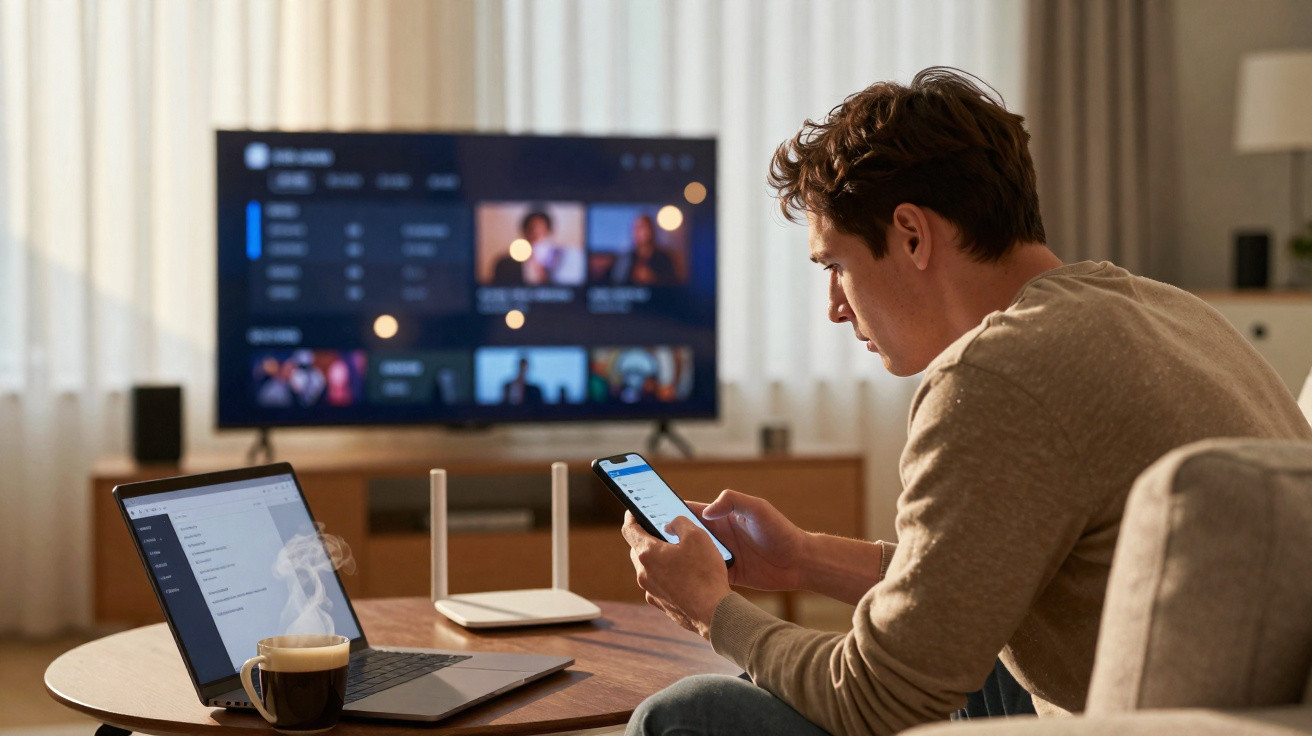
The smart TV stirred to life with bright logos and its familiar chime. A new panel then appeared: “Connected devices.” The list kept going: Mia’s iPhone. ESP_12F. PS5-Guest. A printer he had never owned. A smart bulb whose name resembled a leaked password. His chest tightened, if only slightly. In the kitchen, the kettle clicked off, marking the moment like a second metronome.
The room no longer felt quite the same. He used the remote to explore: first curious, then uncomfortable, then faintly irritated. The TV had revealed a map he had never wanted to view. It resembled a gathering he had not invited anyone to. Who, exactly, was watching whom?
When your TV becomes a window into your whole digital house
Smart TVs seem nothing like computers until they begin behaving like them. At that point, they can feel rather intrusive. They look across the home network, searching for anything talkative enough to say “hello”: phones, laptops, consoles in standby, and that dusty printer in the hall cupboard which still believes it runs the place.
The devices that appear may seem arbitrary, even slightly spectral. It could be a neighbour’s phone attempting to cast by mistake, a streaming stick still set to “guest mode”, or a Wi‑Fi smart plug left behind by the previous tenants and still appearing at start-up. By arranging it all in one neat list, the TV turns the unseen into a miniature horror show. Change the Wi‑Fi password and disable WPS, and half the ghosts vanish. The remaining entries need a more purposeful check.
Why does this list show up at all? Your TV communicates through protocols with welcoming names and fairly open limits: mDNS and Bonjour for discovery; DLNA and UPnP for sharing media; and AirPlay, Chromecast and Miracast for sending video. If the router broadcasts openly, or the television has Wi‑Fi Direct enabled, it may announce itself to anybody nearby and listen for responses. The outcome is a device roll call, although not every listed device necessarily has genuine access. That is the disconcerting part: being visible without obvious consent.
What to do in the next 15 minutes
Begin with the TV. Go to Settings and locate options called Network, Connection or Devices. Give the TV an unremarkable name. Disable Wi‑Fi Direct or “Nearby Share”. Configure AirPlay to “Require code every time”. On Google TV, switch off Guest Mode. For Samsung or LG sets, find “Device Connect”, “Mobile Device Manager” or “Allow when TV is off” and disable them. Next, sign in to the router, replace the Wi‑Fi password with a long, unique passphrase, and select WPA2 or WPA3 security only. Require a code for casting every single time. Then restart every device and see whether the list becomes shorter.
Several familiar pitfalls can cause problems: keeping WPS enabled because it is convenient; sending the Wi‑Fi key by text and later forgetting who received it; retaining an old SSID so forgotten devices reconnect; or putting everything on one network instead of using a guest network for visitors and low-cost IoT devices. Put smart bulbs and the robot vacuum on guest Wi‑Fi, while keeping the TV and phone on the main network. Let’s be honest: nobody does this every day. Doing it once can be enough to reshape your home’s digital map.
If the list remains suspicious, do not panic-investigate. Open the router’s device page and check the manufacturers. “Espressif”, “Tuya”, “Liteon” and “Hon Hai” often indicate IoT equipment. Rename the devices you recognise, block those you do not, and see what reappears after a restart.
“Your TV isn’t haunted. It’s just honest. It’s showing you what your network already knows - and what your habits have allowed.”
- Disable WPS on the router; use WPA2/WPA3 with a new, long passphrase.
- Switch off Wi‑Fi Direct, Guest Mode and “Allow when TV is off”.
- Set up a guest network for visitors and inexpensive smart devices.
- Update the TV and router firmware, and change the router administrator password.
- Make a code compulsory for AirPlay or Cast on every occasion.
The quiet lesson behind a noisy screen
We have all experienced the moment when something familiar suddenly becomes unsettling: an unexpected list, a name that should not be there. It does not automatically mean you are being attacked. It means your home is digitally noisier than you realised, and your TV is an unexpectedly good listener. Privacy isn’t a setting; it’s a habit. Small, dull routines make a difference: changing a password, disabling a feature, creating guest Wi‑Fi, or labelling a device that was previously only “Unknown”.
It is also worth remembering that many “unknown devices” are actually yours: the thermostat, the old tablet in the kitchen, or the smart plug bought for Christmas lights and never unplugged. The answer is not to go off-grid, but to make the grid clearer. Label what belongs to you. Remove what does not. When an unfamiliar item appears, treat it as a knock on the door: not a disaster, simply an opportunity to ask who is there and why.
Let’s be honest: nobody really does this every day. That is fine. Do it properly once, and the TV’s device list should stop feeling like a jump scare and begin to resemble a well-kept guestbook. Tell a friend living in a block of flats or a shared house, where digital boundaries can blur. Share how long it took, which entries disappeared, and which stubbornly remained. That conversation alone changes how we live alongside the screens in our rooms.
| Key point | Detail | Benefit to the reader |
|---|---|---|
| Tame the TV | Disable Wi‑Fi Direct/Guest Mode, require codes for casting, and rename the TV | Prevents random nearby devices from pairing or appearing |
| Fortify the router | Change Wi‑Fi and administrator passwords, disable WPS, use WPA2/WPA3, and create a guest network | Blocks unwanted access at the front door |
| Audit and label | Identify devices by manufacturer, rename recognised devices, block unknown ones, and update firmware | Makes future anomalies easier to identify and resolve |
FAQ:
- Why does my TV show devices I don’t recognise? Smart TVs search your network and nearby wireless options, such as Wi‑Fi Direct, for discoverable devices. You may be seeing a mixture of your own equipment, remnants of old settings, and nearby devices attempting to cast.
- Can someone watch me through my TV? That is unlikely because of a simple device list. The more significant risks are weak router protection, default passwords and enabled remote-control functions. Disable features you do not use and keep firmware updated.
- What’s the quickest fix right now? Change the Wi‑Fi password, turn off WPS, and disable Wi‑Fi Direct or Guest Mode on the TV. Restart the router and television, then review the list again.
- Should I factory-reset my TV? Do this only if the list still seems strange after securing the network and disabling discovery features. Resetting removes accounts and apps, so it should be a final measure rather than the first.
- How do I tell if a device is mine? Check the manufacturer on the router’s device page, compare MAC addresses, and rename devices you know. If a blocked device returns, it may be a neighbour using an old key-change the Wi‑Fi password.




Comments
No comments yet. Be the first to comment!
Leave a Comment